Add or change a pickup location
Pickup locations live in Operations → Schedule → Pickup & schedule, in the Pickup location panel. The heading shows how many you have used out of your plan's allowance.
If you have turned scheduled pickup on, manage your pickup spots in the Scheduled pickup panel at the top of that page instead — the Pickup location panel described here moves into Simple pickup & delivery settings (used only if you switch back) further down, and applies again only if you switch back.
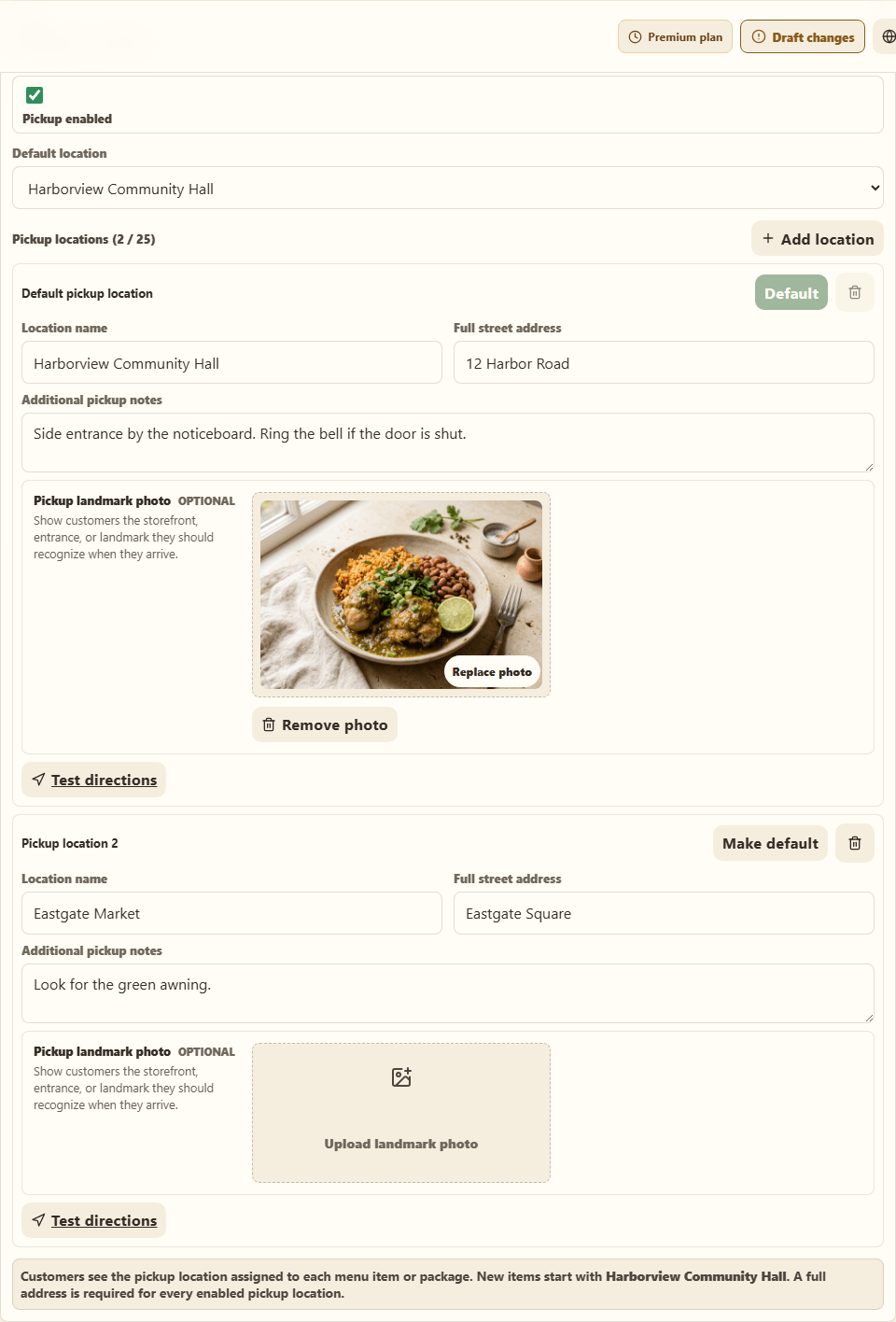
Add one
- Open Operations → Schedule → Pickup & schedule.
- Find Pickup locations.
- Select Add location.
- Enter the name customers will recognize, the address, and any access notes — which door, where to park, what to say at the desk.
- Save.
Write the access notes for someone who has never been there. "Side door by the blue bins, ring the bell" saves you a dozen phone calls.
How many you can have
2 on Basic. 25 on Premium. The counter in the panel heading tells you where you are.
Changing a location customers are already using
Editing a location changes it for orders already placed, not just future ones. Someone who ordered on Monday expecting the community center will now see whatever you just typed.
If you are moving permanently:
- Contact everyone with an open order for that location first.
- Then change it.
- Put the change in Promotions → Flash banner so it is visible on your homepage.