Set pickup days and windows
Pickup timing and pickup places live together in Operations → Schedule → Pickup & schedule:
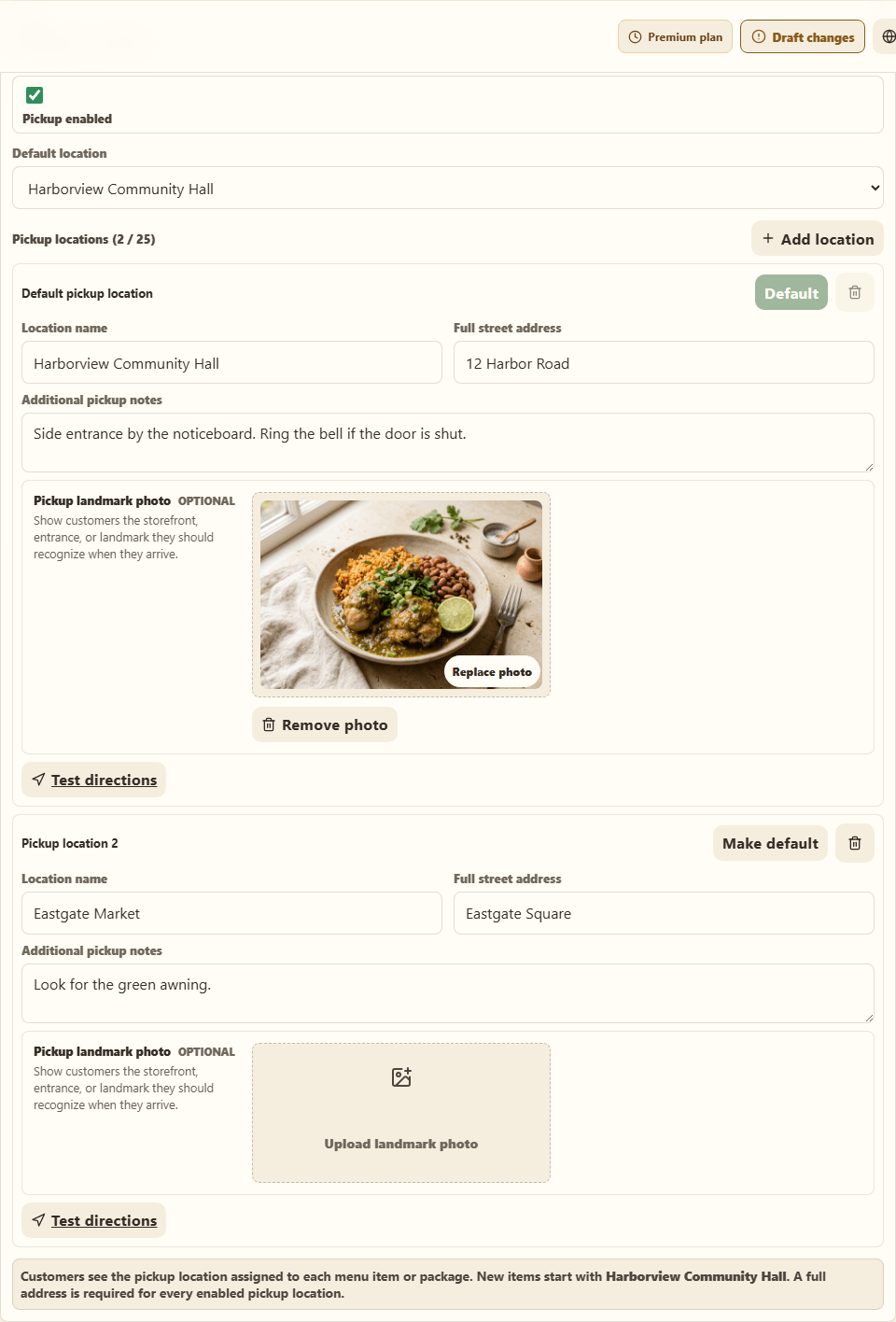
- In Pickup location, enable pickup and manage each location's name, address, and customer instructions.
- In Pickup schedule, choose your Pickup days and Pickup window. Every dish you add to a week automatically gets that week's pickup timing — no per-item date entry.
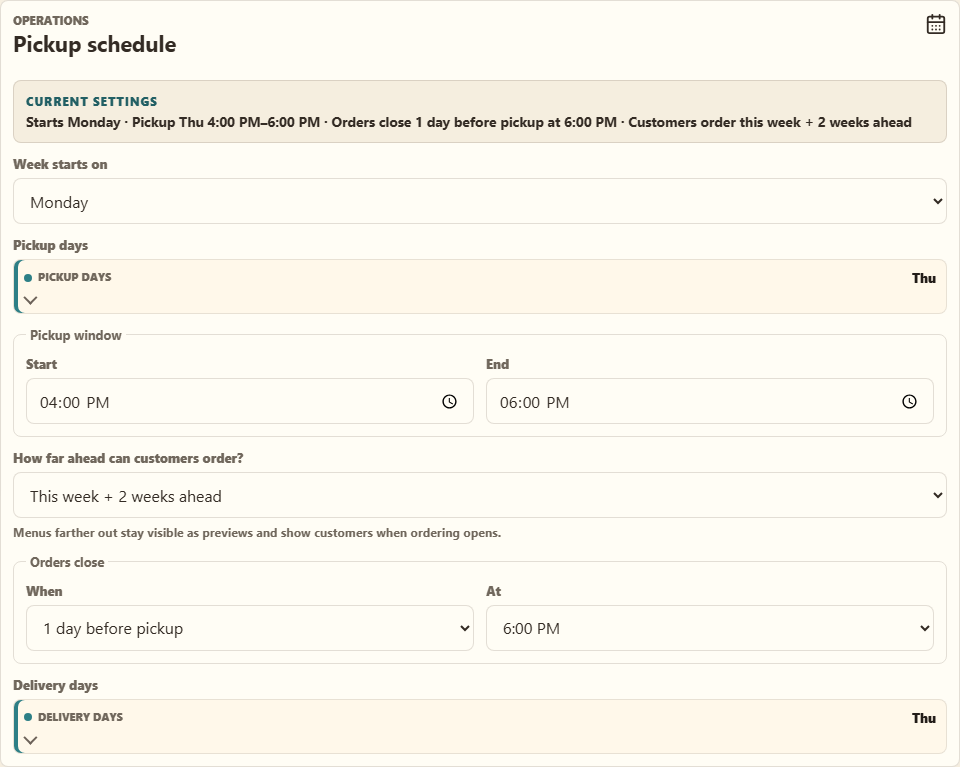
For a week that differs from your usual rhythm, use This week's pickup on the week banner to move that week's pickup day or window; dishes still on the default move with it. To change a single item, edit it and select Adjust pickup & cutoff.
If you have turned scheduled pickup on
Once scheduled pickup is on, these editors are no longer what customers see, and the page tidies them away into a section called Simple pickup & delivery settings (used only if you switch back). Select that to open them — they are unchanged, and they matter again the moment you switch back. Your live pickup days and hours are the pickup times in the Scheduled pickup panel at the top of the page.
What customers see
Available pickup dates, the selected location, and the window attached to their order confirmation.