How to place an order
Steps
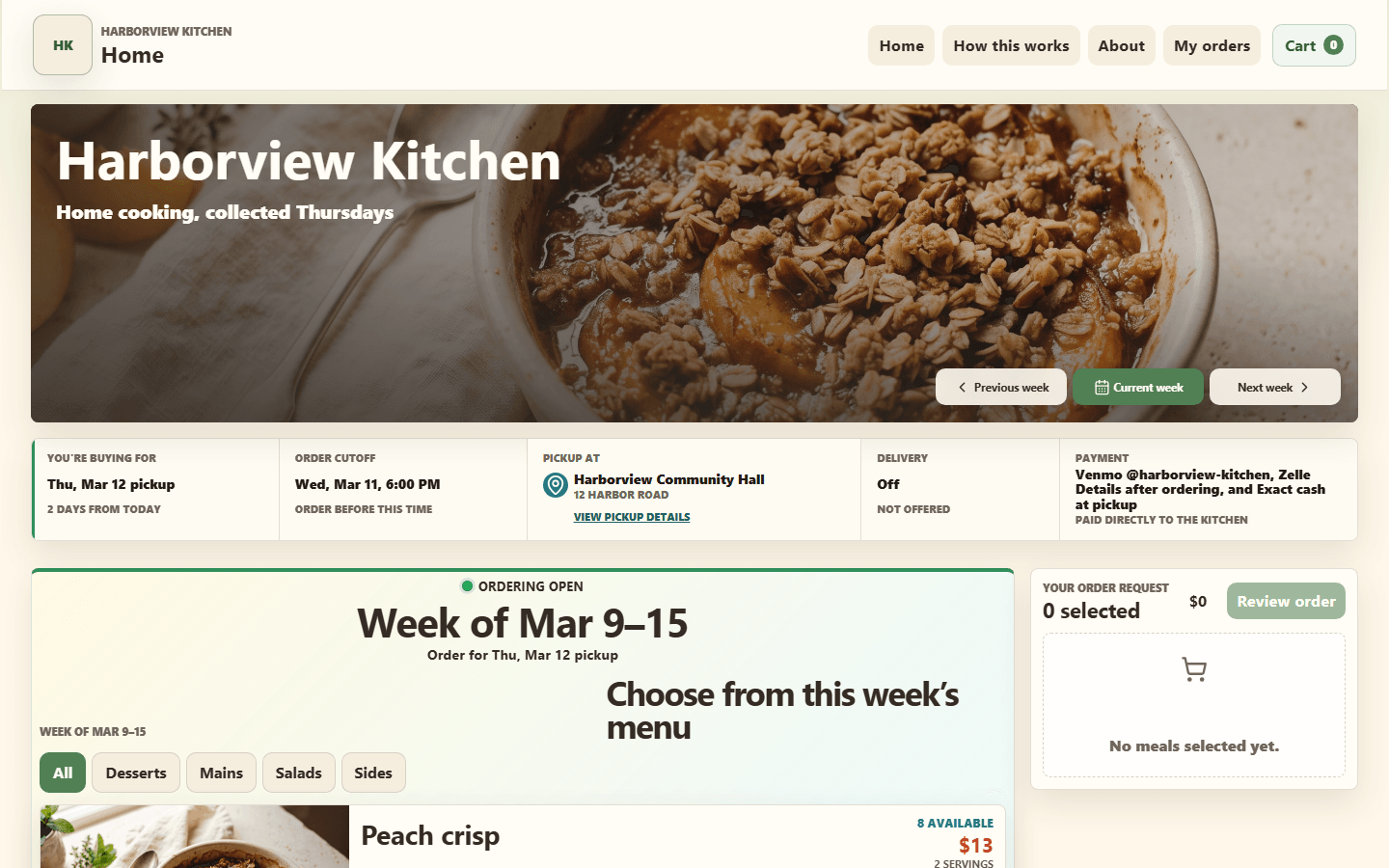
- Open the kitchen's storefront.
- Pick an item and choose a quantity. Anything marked Sold out is gone for that week.
- Add it to your cart. Repeat for everything you want.
- Open View cart and enter your name and email. Phone and order notes are optional. Your browser may offer to autofill your contact details.
- Choose pickup or delivery, and a time from what the kitchen offers.
- Add a note if something matters — an allergy, a late arrival, a birthday.
- Check the Items subtotal above the submit button. If you selected delivery, the summary also shows the delivery fee and total. Select Save request for confirmation when you are ready. The line under the button names the kitchen and reminds you that this sends an order request, which the kitchen confirms before pickup or delivery.
On a phone, the cart header keeps the items subtotal visible. Use the plus and minus buttons to adjust quantities; the price summary updates as you change them. Submitting saves an order request, not a payment. Follow the kitchen's confirmation and payment instructions afterward.
Your cart doesn't reserve anything
Adding an item to your cart does not set it aside for you. Quantities are confirmed when you submit your request. If something sold out while you were deciding, the storefront tells you so you can adjust your cart before sending it. If ordering closes for an item while it's in your cart, the storefront tells you and refreshes the menu.
Paying
The kitchen may offer secure card payment through Stripe or direct options such as Venmo, Zelle, Cash App, PayPal, or cash. Card details are entered on Stripe. Food-sale payments go to the kitchen; Stovefront does not receive or hold them. Your order confirmation shows the available next step.
See how payment works.
Keep your order code and status link
Your confirmation includes an order code. It is how the kitchen finds your order. Save it.
Stovefront also emails you an Order request received message with your order code and order details. That email means the kitchen has your request, not that the order is final. The kitchen confirms it with you afterward.
The confirmation and the email both have a View order status link. It opens a page for that order where you can check whether the kitchen has confirmed it and find the payment options again. See find order status and pickup details.
You can also come back any time through My orders using just your email.
Related
Choose pickup or delivery · How payment works · Find order status and pickup details