Build and publish a menu week
Build it
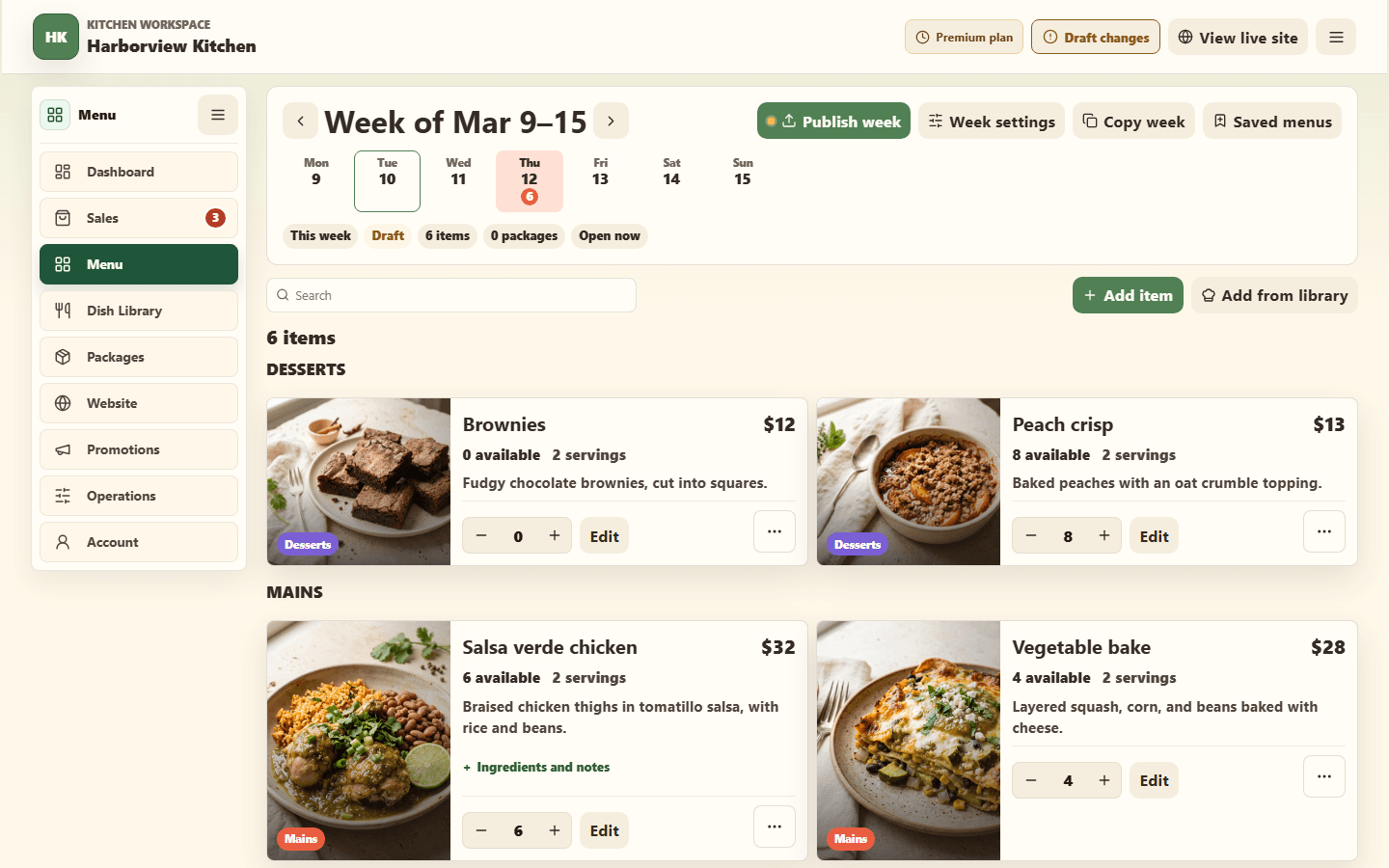
- Open Menu. The week header shows which week you are planning; move with the arrows beside the week name.
- Read the day strip under the week name. Pickup days are highlighted, and each shows how many dishes land on it. The chips below it tell you whether the week is a draft or published, how many items and packages it holds, and whether ordering is open.
- Add dishes and packages with Add item or Add from library. Each opens in a panel beside the menu, so the list stays in view.
- Give every item a price and a quantity. An item with no quantity cannot be ordered.
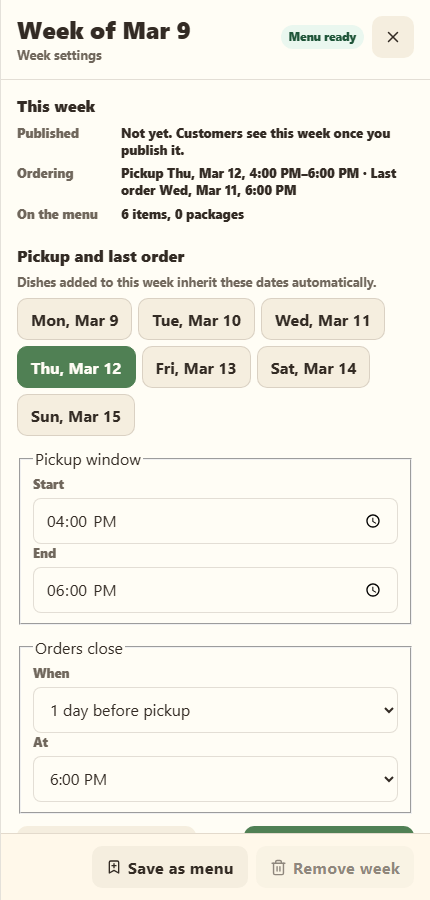
Pickup dates and order cutoffs fill in automatically from your menu cycle. To change them for this week only, open Week settings and edit Pickup and last order; the same panel holds the plan capacity, the customer-facing summary and note, and your private planning notes. Adjust an individual item only if it genuinely differs.
Reuse a week
Copy week copies this week's items and packages to the next empty week, with every pickup and cutoff moved to the matching day. The copy lands as a draft: review it, then publish it.
Preview before you publish
Add an optional week banner
Open More menu cycle actions → Week setup → Week banner. Upload a photo, choose one from your media library or the starting images, or paste a direct HTTPS link to a public photo you have permission to use.
For a seasonal image, open Generate a week banner, describe your idea (for example, Halloween pumpkins and autumn leaves), then select Create image. Generation uses your existing paid Premium image allowance.
Review the preview, add an image description, and adjust Vertical crop. Select Apply banner to this week, then Publish week to show it to customers. Each week keeps its own banner; weeks without one keep the usual layout. Uploading or generating a preview does not apply it automatically.
To clear it, select Remove week banner and publish the week again. Removing the banner does not delete the original photo from your library.
Read it as a customer: names, prices, photos, pickup times, cutoffs, and any instructions. Drafts stay private until you publish, so there is no rush.
Publish it
Select Publish week.
Two different buttons matter here, and they do different things:
- Publish week — puts this week's menu live.
- Publish site (in Website → Publish & share → Site status & address) — puts your storefront online at all.
Publishing a week does nothing for customers if your site is still a draft. Both need doing once; after that you only publish weeks.
You can publish the same week as often as you like. Republishing keeps what has already sold: each quantity is the total you are making, and the editor shows how many are left beside it. See Set price, quantity, and availability.
Stopping orders once a week is live
There is no "unpublish week" button. What you have instead:
| To do this | Use |
|---|---|
| Stop one item selling | Set its quantity to 0 |
| Cancel a whole week | Set the week to No food week |
| Close for a holiday, site still visible | Operations → Schedule → Vacation |
| Take the whole site offline | Website → Publish & share → Site status & address → Pause site |
Whichever you pick, tell people. Use Promotions → Flash banner for a homepage notice, and message anyone with an order already placed — pulling a menu does not cancel or refund orders that already exist.