Find a customer and update customer notes
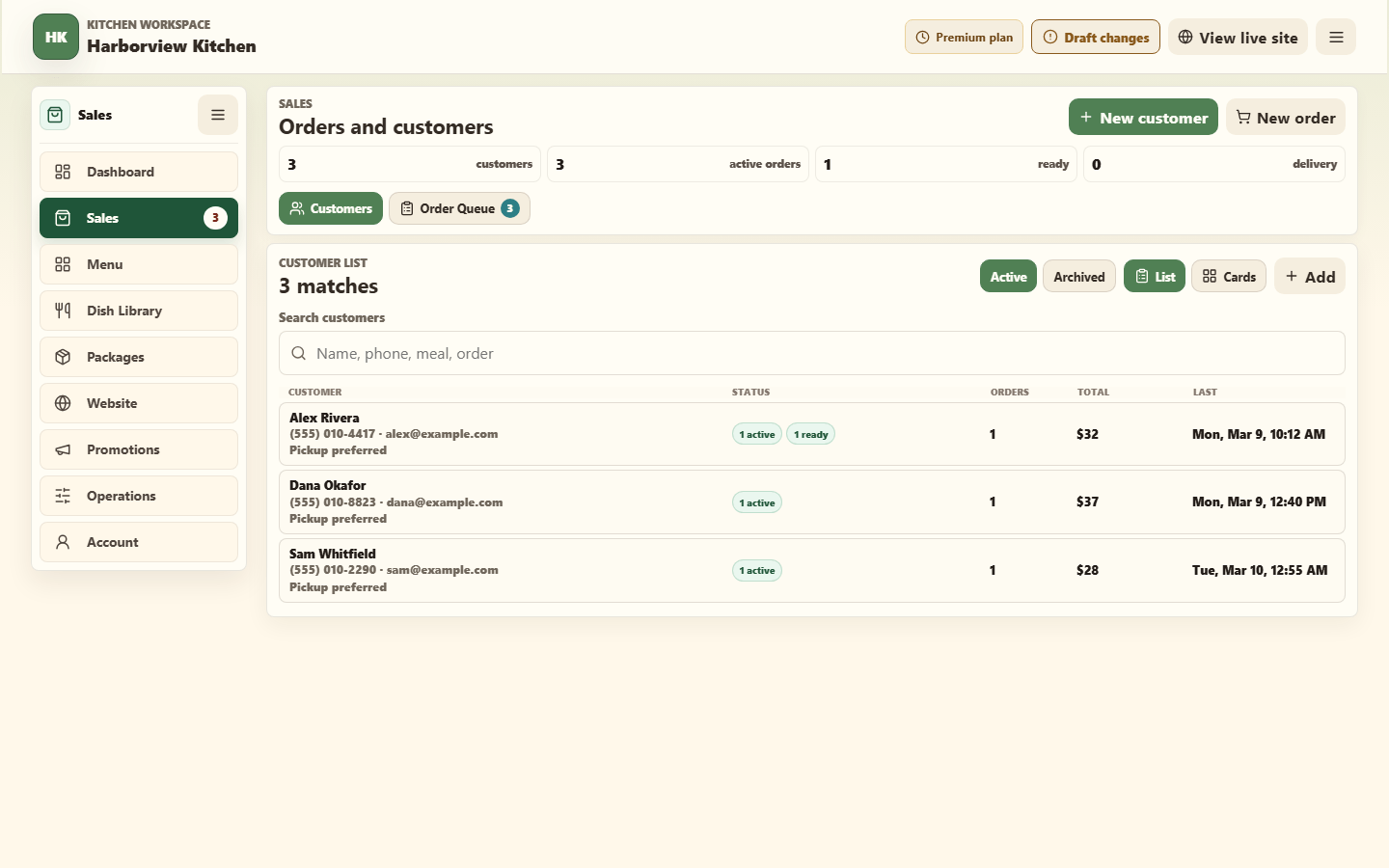
Open Customers and search by name, email, or phone. Review order history before adding a note. Keep notes factual, relevant to service, and free of sensitive information that the kitchen does not need.
Use order notes for one-order details such as a gate code or substitution request. Use customer notes only for durable service context.
Saving your changes
Select a customer to open their details, then edit their name, preference, phone, email, delivery address, or notes. There is no save button: your edits save automatically a moment after you stop typing, and anything still unsaved is saved when you close the panel. If a change can't be saved, for example because the email address isn't valid, a message appears telling you what to fix so you can try again.
A customer you add yourself with Add is kept in this browser only for now, so their details aren't saved to your account yet. A short message tells you this the first time you edit one. Customers who order from your storefront are saved to your account automatically.
When a customer orders again
When a storefront order matches a saved customer, by phone number or email, it's added to that customer's history. The order keeps the name, email, phone, and address the buyer typed, but your saved customer details aren't changed:
- The name, email, phone, and notes you saved stay as they are.
- A saved delivery address or preference is only filled in if it was blank.
- An archived customer stays under Archived. Their new order still appears in your order queue.
If a buyer's details have changed, update the customer yourself.