Set up how customers pay
Open Operations → Getting Paid. This area separates connected card checkout from payment instructions your kitchen provides.
Accept cards with Stripe
Use Get paid with Stripe to connect your own Stripe account. When Stripe reports that card payments are ready, customers see Pay securely and Stovefront can confirm the payment status automatically.
Follow Connect Stripe and receive card payments for setup, recovery, payouts, and refunds.
Add a direct payment service
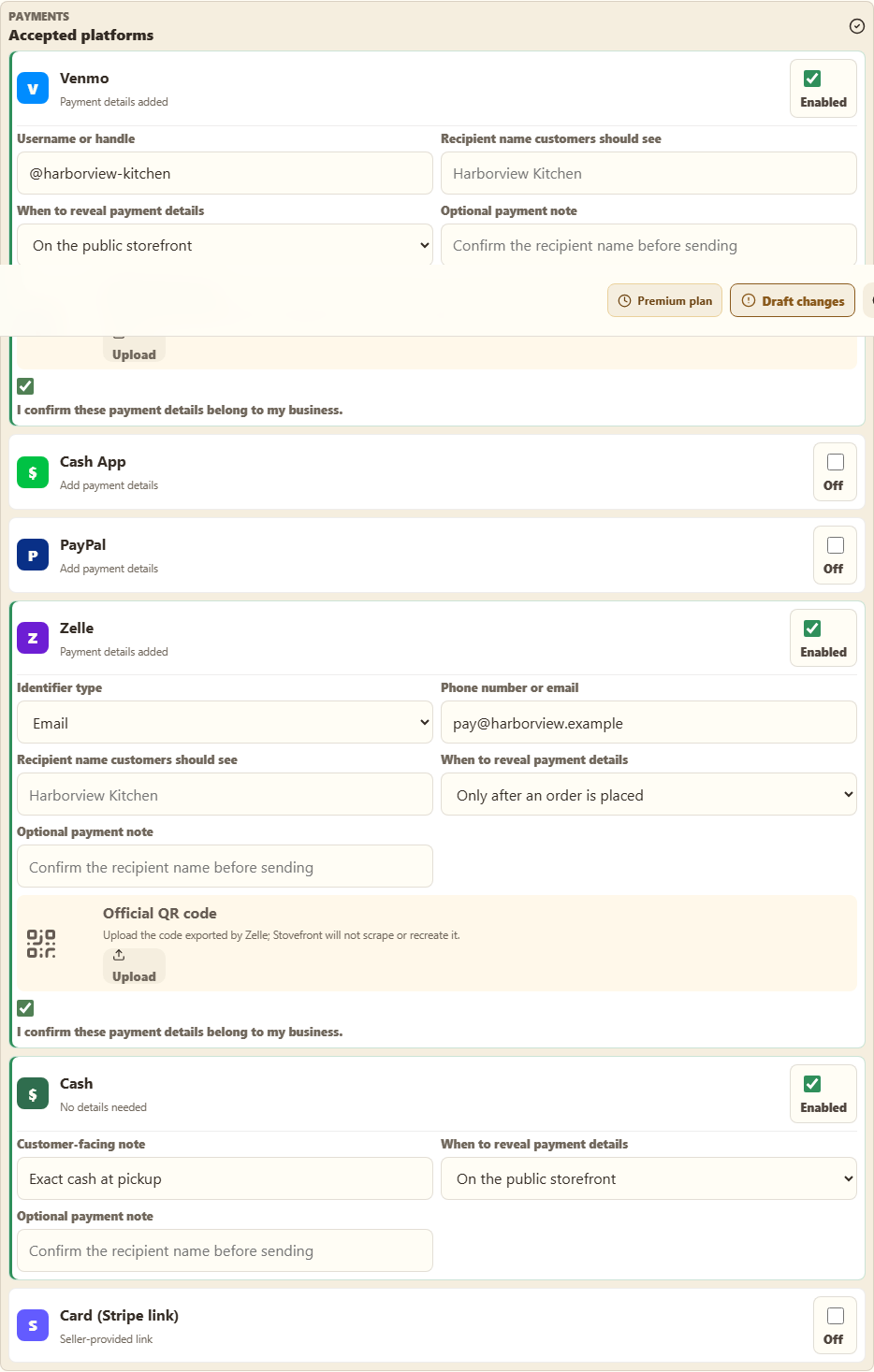
You can also offer Venmo, Zelle, Cash App, PayPal, or cash:
- Turn on the service.
- Enter the customer-facing handle, link, email, phone number, or cash instructions requested by the field.
- For a non-cash service, confirm that the payment details belong to your business.
- If you use a QR code, upload the official code exported by that payment service. Stovefront does not recreate or scrape QR codes.
- Save the settings, then place a test order from the public storefront.
Some account details and QR codes appear only after the customer places an order. This reduces exposure of private payment identifiers on the public storefront.
Direct payment services are instructions, not connected accounts. Stovefront cannot confirm that the money arrived or return it. When a customer selects I've sent it, verify the payment in your own payment app before marking the order paid or handing it over.
Order numbers
The same page controls the order-number prefix and next order number. Keep the prefix short and recognizable. Changing the next number affects future orders only.
Related
Confirm an order and payment received · How payment works for customers